


In the rapidly evolving landscape of fintech and personal finance, the complexity of software architecture often outpaces the clarity of documentation. For developers building a Budget Planning App, the challenge is not just writing code, but visualizing the intricate web of relationships between users, budgets, transactions, and financial goals. A well-structured class diagram serves as the blueprint for the entire system, ensuring that data integrity, business logic, and user interactions are modeled correctly before a single line of Java or C# code is written.

Visual modeling with PlantUML allows architects to define the static structure of the application using a concise text-based syntax. This approach enhances architectural clarity, enables rapid visual prototyping, and serves as living technical documentation that evolves alongside the codebase. By utilizing VPasCode, the free web-based diagram-as-code editor, you can instantly render these complex financial models without the friction of local environment setup, allowing you to focus purely on the architecture.
Understanding the Model: Purpose, Scope & Problem Framing
Before diving into the syntax, it is essential to understand the abstraction layer we are working within. This guide focuses on a Class Diagram, which is the standard UML notation for describing the static structure of a system.
Diagram Abstraction & Representation
A class diagram models the system as a collection of classes, each representing a specific entity within the domain. In the context of a Budget Planning App, classes act as containers for data (attributes) and behavior (methods). For example, the Budget class encapsulates the logic for tracking spending against a limit, while the User class manages authentication and profile settings. The relationships between these classes—such as “User creates Budget” or “Transaction belongs to Budget”—define the cardinality and navigation paths of the system.
Target Domain Scope & Scenario
This specific model covers the core domain of a personal finance application. It intentionally excludes external integrations like banking APIs or third-party payment gateways to focus on the internal data model. The scope includes:
- User Management: Authentication and profile customization.
- Financial Tracking: Budgets, categories (Income/Expense), and Transactions.
- Goal Setting: Savings plans and target achievement tracking.
- Reporting & Alerts: Automated notifications and financial summaries.
Key Takeaways & Educational Insights
By constructing this model, you will gain insights into:
- Abstraction: How to use abstract classes (e.g.,
BudgetCategory) to reduce redundancy. - Cardinality: How to define one-to-many relationships (e.g., one User has many Transactions).
- Encapsulation: How to separate public methods from private attributes using standard UML visibility symbols.
Complete Diagram & Full Source Code
Below is the complete blueprint for the Budget Planning App. This diagram utilizes the cerulean theme for a clean, professional look and includes 10+ classes with various inheritance and association relationships.
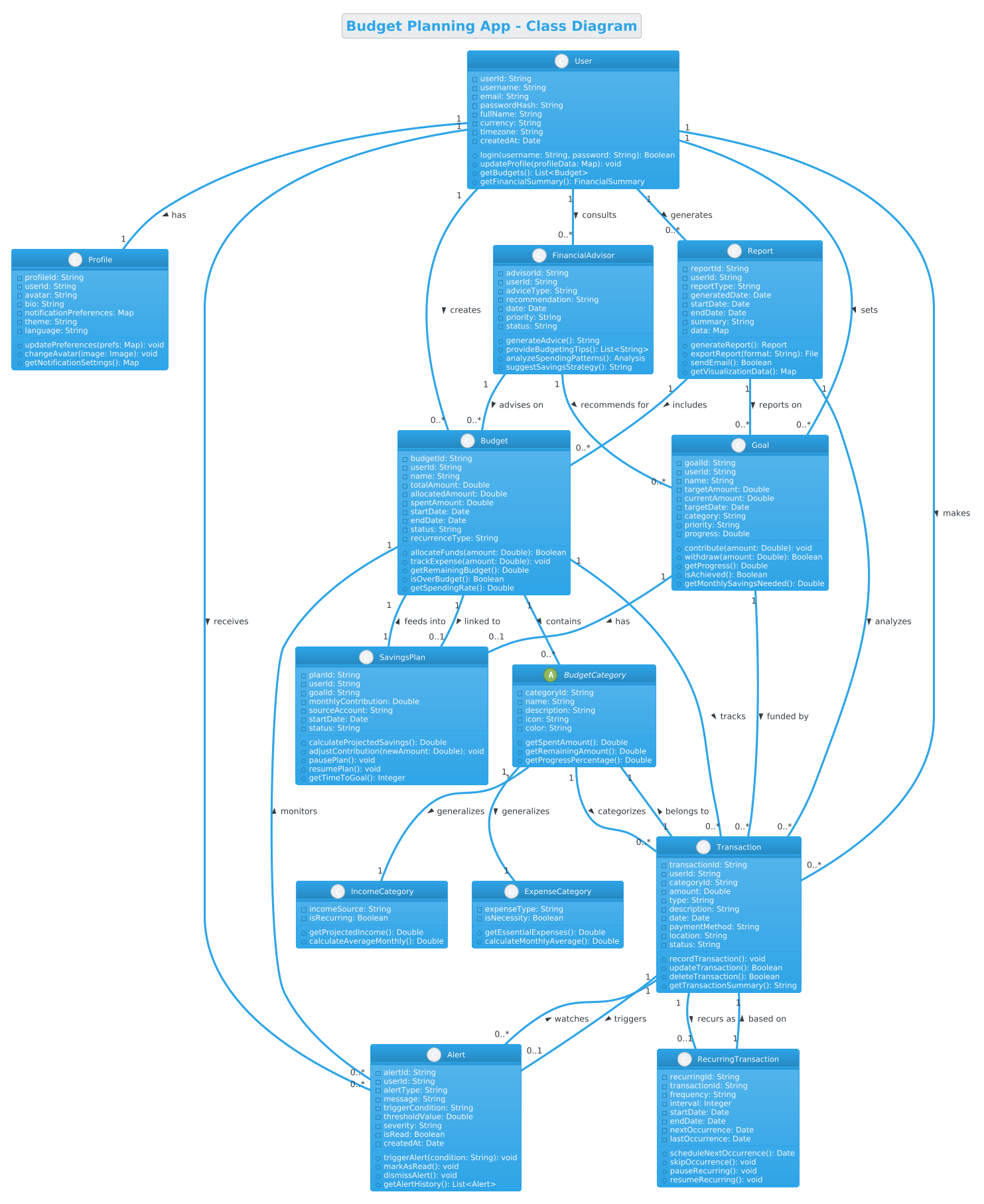
@startuml
!theme cerulean
title Budget Planning App - Class Diagram

' User and Profile classes
class User {
  - userId: String
  - username: String
  - email: String
  - passwordHash: String
  - fullName: String
  - currency: String
  - timezone: String
  - createdAt: Date
  + login(username: String, password: String): Boolean
  + updateProfile(profileData: Map): void
  + getBudgets(): List<Budget>
  + getFinancialSummary(): FinancialSummary
}

class Profile {
  - profileId: String
  - userId: String
  - avatar: String
  - bio: String
  - notificationPreferences: Map
  - theme: String
  - language: String
  + updatePreferences(prefs: Map): void
  + changeAvatar(image: Image): void
  + getNotificationSettings(): Map
}

' Budget and Category classes
abstract class BudgetCategory {
  - categoryId: String
  - name: String
  - description: String
  - icon: String
  - color: String
  + getSpentAmount(): Double
  + getRemainingAmount(): Double
  + getProgressPercentage(): Double
}

class IncomeCategory {
  - incomeSource: String
  - isRecurring: Boolean
  + getProjectedIncome(): Double
  + calculateAverageMonthly(): Double
}

class ExpenseCategory {
  - expenseType: String
  - isNecessity: Boolean
  + getEssentialExpenses(): Double
  + calculateMonthlyAverage(): Double
}

class Budget {
  - budgetId: String
  - userId: String
  - name: String
  - totalAmount: Double
  - allocatedAmount: Double
  - spentAmount: Double
  - startDate: Date
  - endDate: Date
  - status: String
  - recurrenceType: String
  + allocateFunds(amount: Double): Boolean
  + trackExpense(amount: Double): void
  + getRemainingBudget(): Double
  + isOverBudget(): Boolean
  + getSpendingRate(): Double
}

' Transaction classes
class Transaction {
  - transactionId: String
  - userId: String
  - categoryId: String
  - amount: Double
  - type: String
  - description: String
  - date: Date
  - paymentMethod: String
  - location: String
  - status: String
  + recordTransaction(): void
  + updateTransaction(): Boolean
  + deleteTransaction(): Boolean
  + getTransactionSummary(): String
}

class RecurringTransaction {
  - recurringId: String
  - transactionId: String
  - frequency: String
  - interval: Integer
  - startDate: Date
  - endDate: Date
  - nextOccurrence: Date
  - lastOccurrence: Date
  + scheduleNextOccurrence(): Date
  + skipOccurrence(): void
  + pauseRecurring(): void
  + resumeRecurring(): void
}

' Goal and Savings classes
class Goal {
  - goalId: String
  - userId: String
  - name: String
  - targetAmount: Double
  - currentAmount: Double
  - targetDate: Date
  - category: String
  - priority: String
  - progress: Double
  + contribute(amount: Double): void
  + withdraw(amount: Double): Boolean
  + getProgress(): Double
  + isAchieved(): Boolean
  + getMonthlySavingsNeeded(): Double
}

class SavingsPlan {
  - planId: String
  - userId: String
  - goalId: String
  - monthlyContribution: Double
  - sourceAccount: String
  - startDate: Date
  - status: String
  + calculateProjectedSavings(): Double
  + adjustContribution(newAmount: Double): void
  + pausePlan(): void
  + resumePlan(): void
  + getTimeToGoal(): Integer
}

' Report and Notification classes
class Report {
  - reportId: String
  - userId: String
  - reportType: String
  - generatedDate: Date
  - startDate: Date
  - endDate: Date
  - summary: String
  - data: Map
  + generateReport(): Report
  + exportReport(format: String): File
  + sendEmail(): Boolean
  + getVisualizationData(): Map
}

class Alert {
  - alertId: String
  - userId: String
  - alertType: String
  - message: String
  - triggerCondition: String
  - thresholdValue: Double
  - severity: String
  - isRead: Boolean
  - createdAt: Date
  + triggerAlert(condition: String): void
  + markAsRead(): void
  + dismissAlert(): void
  + getAlertHistory(): List<Alert>
}

class FinancialAdvisor {
  - advisorId: String
  - userId: String
  - adviceType: String
  - recommendation: String
  - date: Date
  - priority: String
  - status: String
  + generateAdvice(): String
  + provideBudgetingTips(): List<String>
  + analyzeSpendingPatterns(): Analysis
  + suggestSavingsStrategy(): String
}

' Relationships
User "1" -- "1" Profile : has >
User "1" -- "0..*" Budget : creates >
User "1" -- "0..*" Transaction : makes >
User "1" -- "0..*" Goal : sets >
User "1" -- "0..*" Alert : receives >
User "1" -- "0..*" Report : generates >
User "1" -- "0..*" FinancialAdvisor : consults >

Budget "1" -- "0..*" BudgetCategory : contains >
Budget "1" -- "0..*" Transaction : tracks >
Budget "1" -- "0..1" SavingsPlan : linked to >

BudgetCategory "1" -- "1" IncomeCategory : generalizes >
BudgetCategory "1" -- "1" ExpenseCategory : generalizes >

Transaction "1" -- "0..1" RecurringTransaction : recurs as >
Transaction "1" -- "1" BudgetCategory : belongs to >
Transaction "1" -- "0..1" Alert : triggers >

Goal "1" -- "0..1" SavingsPlan : has >
Goal "1" -- "0..*" Transaction : funded by >

SavingsPlan "1" -- "1" Budget : feeds into >

RecurringTransaction "1" -- "1" Transaction : based on >

Report "1" -- "0..*" Transaction : analyzes >
Report "1" -- "0..*" Budget : includes >
Report "1" -- "0..*" Goal : reports on >

Alert "0..*" -- "1" Budget : monitors >
Alert "0..*" -- "1" Transaction : watches >

FinancialAdvisor "1" -- "0..*" Budget : advises on >
FinancialAdvisor "1" -- "0..*" Goal : recommends for >

BudgetCategory "1" -- "0..*" Transaction : categorizes >

@endumlStep-by-Step Architectural Walkthrough
Let us deconstruct the code to understand how this diagram was constructed. We will proceed through four distinct phases: Canvas Configuration, Entity Declaration, Relationship Mapping, and Visual Polishing.
Phase 1: Canvas Configuration & Layout Directives
Every PlantUML diagram begins with a preamble that sets the rendering engine and visual style. In this example, we use the !theme directive to apply a consistent color palette.
Start your file with the standard PlantUML header and theme directive:
@startuml
!theme cerulean
title Budget Planning App - Class Diagram
The @startuml tag signals the beginning of the diagram. The !theme cerulean directive applies a blue-toned, professional theme suitable for financial applications. The title directive adds a caption to the diagram for clarity.
Phase 2: Declaring Core Entities, Actors, and Boundaries
The next step is defining the classes themselves. A class is declared using the class keyword followed by the class name and a block of attributes and methods.
Notice the visibility symbols: - for private and + for public. Types are specified after the colon.
class User {
  - userId: String
  - username: String
  + login(username: String, password: String): Boolean
}
We also introduced an abstract class for BudgetCategory. This is crucial for modeling inheritance. Abstract classes cannot be instantiated directly but serve as a template for IncomeCategory and ExpenseCategory.
abstract class BudgetCategory {
  - categoryId: String
  + getSpentAmount(): Double
}
Phase 3: Mapping Data Flows & Key Interactions
Relationships define how classes interact. In PlantUML, we use the -- operator to connect classes. Cardinality (e.g., “one” or “many”) is defined using quotes around numbers.
For example, a User creates many Budgets, but a Budget belongs to only one User.
User "1" -- "0..*" Budget : creates >The arrow > indicates the direction of the relationship or association. We also used inheritance syntax to link child classes to the abstract parent:
BudgetCategory "1" -- "1" IncomeCategory : generalizes >Phase 4: Grouping, Annotations & Visual Polish
To improve readability, we organized the code into logical sections using comments (lines starting with '). This helps developers navigate the file quickly. We also ensured consistent naming conventions and included complex data types like List<Budget> to represent collections of objects.
Finally, we closed the diagram with @enduml to signal the end of the code block.
Syntax & Keyword Deep Dive
Mastering PlantUML requires understanding the specific keywords that drive the rendering engine. Here is a breakdown of the syntax features used in this Budget Planning App diagram.
class: Declares a standard class with attributes and methods.abstract class: Declares a class that cannot be instantiated directly, used here for category types.+/-: Visibility modifiers.+is public (accessible everywhere),-is private (accessible only within the class).--: The association operator used to draw lines between classes."1"/"0..*": Cardinality notation.1means exactly one,0..*means zero to many.: generalizes: A relationship label indicating inheritance (parent-child relationship).: creates/: tracks: Relationship labels that describe the semantic meaning of the connection.>: Arrowhead notation indicating the direction of the relationship.
Best Practices & Pitfalls to Avoid
To ensure your PlantUML diagrams remain maintainable and clear, follow these architectural best practices:
- Modularize Your Code: Group related classes together in the source file using comments. This makes it easier to locate specific entities like
TransactionorAlertwithout scrolling through the entire file. - Use Meaningful Labels: Avoid generic relationship labels. Instead of just drawing a line, specify the nature of the connection (e.g.,
: monitorsvs: tracks). This adds semantic value to the diagram. - Manage Visual Complexity: If a diagram becomes too crowded, consider splitting it into multiple diagrams (e.g., one for User Management, one for Financial Transactions). However, for this Budget Planning App, the single view effectively captures the core domain.
- Consistent Naming: Always use PascalCase for class names and camelCase for methods. This aligns with standard Java and C# conventions, making the diagram easier to read for developers.
Try It Yourself with VPasCode
Start Building PlantUML Diagrams Faster with VPasCode
Instantly render and customize this Budget Planning App class diagram in your browser with zero local setup or installation.