


When managing application configurations, environment settings, or build scripts, standard JSON can feel restrictive due to its lack of inline documentation. The JSONC Visualizer transforms commented JSON (JSONC) documents into clear, tree-structured node graphs. By parsing single-line and multi-line comments alongside object keys and values, developers can document configuration flags without sacrificing clear visual inspection of application state.
The Mechanics of JSONC Visualizations
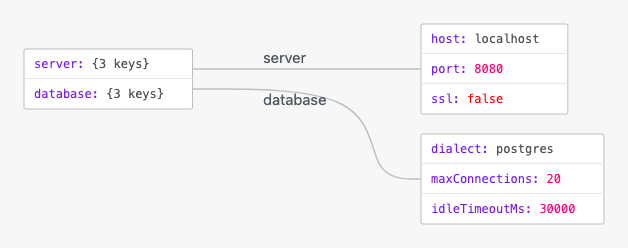
In VPasCode, JSONC rendering parses inline and block comments as metadata while transforming keys, objects, and arrays into interactive node-based diagrams. Structural keys serve as parent nodes, primitive values display as leaf nodes, and comments provide clean inline context in code views without interfering with graph generation.
1. Essential Setup
To visualize a standard JSONC file, add single-line (//) or multi-line (/* */) comments anywhere whitespace is allowed to explain settings directly within the payload:
{
  // Server environment configuration
  "server": {
    "host": "localhost",
    "port": 8080, // Default HTTP port
    "ssl": false
  },

  /* Database connection pool parameters */
  "database": {
    "dialect": "postgres",
    "maxConnections": 20,
    "idleTimeoutMs": 30000
  }
}
Advanced Structural Techniques
JSONC visualizations excel at mapping out multi-stage deployment targets, environment overrides, and feature flags that rely heavily on explanatory inline notes.
1. Environment Feature Toggles
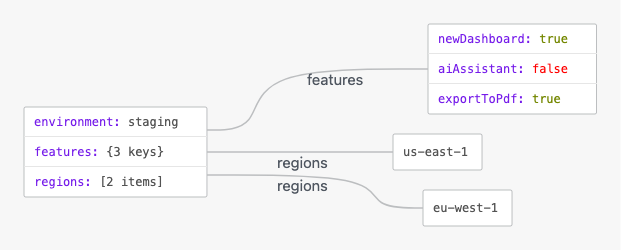
Annotating complex deployment environments with comments helps clarify feature flag states and rollback rules before rendering node structures:
{
  // Active feature flags for staging environment
  "environment": "staging",
  "features": {
    "newDashboard": true, // Rolled out to beta testers
    "aiAssistant": false, // Pending security audit
    "exportToPdf": true
  },

  /* Regional routing and failover regions */
  "regions": [
    "us-east-1", // Primary region
    "eu-west-1"  // Disaster recovery backup
  ]
}
Structuring Tooling and Workspace Settings
Documenting developer tooling settings (like linter rules or code editor preferences) keeps team-wide options easy to interpret while preserving clean node hierarchy.
1. Code Formatter and Linter Settings
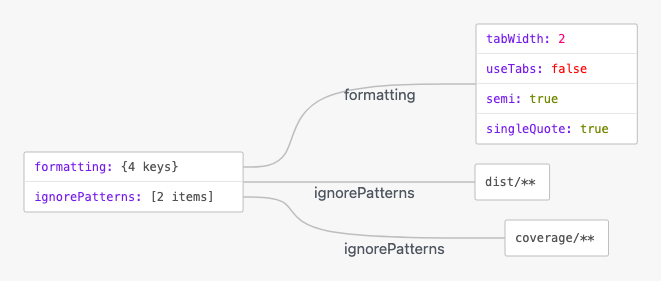
Use comments to explain why specific formatting rules or file glob patterns are enabled across the project:
{
  /* Project code style rules */
  "formatting": {
    "tabWidth": 2,
    "useTabs": false,
    "semi": true, // Always require semicolons
    "singleQuote": true
  },

  // Ignored file paths for formatting
  "ignorePatterns": [
    "dist/**", // Compiled build artifacts
    "coverage/**"
  ]
}
Strategic Best Practices
- Use Standard Comment Syntax: Stick strictly to single-line
//or multi-line/* */comments to ensure reliable parsing across tools. - Strip Comments for Production APIs: Use JSONC for human-edited config files, but strip comments before passing payloads to strict standard JSON parsers.
- Keep Keys and Strings Double-Quoted: Maintain double-quoted key names and strict JSON string bounds so the file stays valid JSONC rather than switching to JSON5 syntax.