When managing large-scale operations like a construction project, keeping every phase, sub-task, and deliverable organized is crucial. One of the most effective ways to visualize this hierarchy is through a Work Breakdown Structure (WBS). Traditionally, drawing these hierarchies manually in graphic software is tedious and hard to maintain. That is why modern technical teams rely on a
diagram-as-code tool (PlantUML) and platforms like our free
PlantUML editor,
Visual Paradigm VPasCode.
In this masterclass case study, I am going to walk you through my exact thought process and step-by-step strategy for building a clean, beautifully styled Construction Project WBS from scratch. Whether you are using a
free PlantUML editor or exploring a robust
PlantUML editor environment, this guide will show you how to turn plain text into executive-ready diagrams effortlessly.
1. Setting Up the Structural Foundation
When I start a new diagram-as-code project, my first step is never about styling; it is about establishing the structural hierarchy. For a WBS, PlantUML uses the Work Breakdown Structure syntax (
@startwbs and
@endwbs) where asterisks define the tree depth.
I start by setting up the root node and the primary project phases:
@startwbs
title Construction Project Work Breakdown Structure

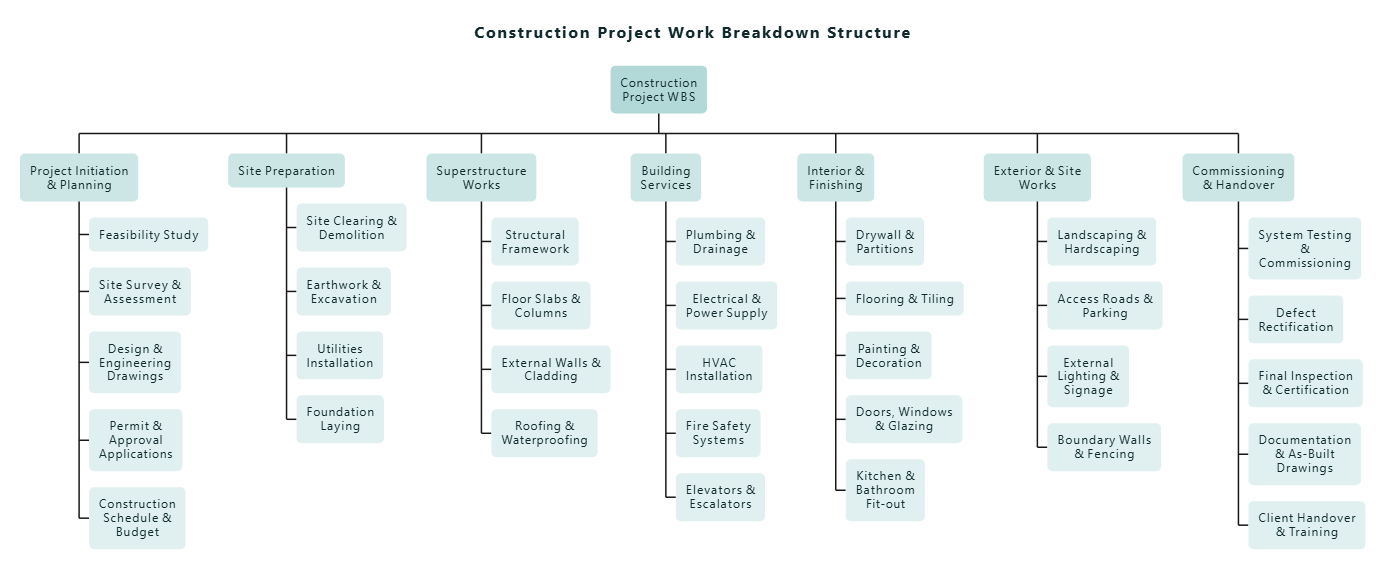
* Construction Project WBS
** Project Initiation & Planning
** Site Preparation
** Superstructure Works
** Building Services
** Interior & Finishing
** Exterior & Site Works
** Commissioning & Handover@endwbs
Why I structure it this way: By outlining the top-level categories first (Depth 1), I create a strong skeletal framework. This ensures that when I add granular tasks later, the layout remains logical and balanced.
2. Filling Out the Granular Work Packages
Next, I expand each primary phase into actionable sub-tasks (Depth 2 and beyond). For instance, under
Project Initiation & Planning, I need to account for feasibility studies, surveys, engineering drawings, permits, and schedules. I add these using three asterisks:
** Project Initiation & Planning
*** Feasibility Study
*** Site Survey & Assessment
*** Design & Engineering Drawings
*** Permit & Approval Applications
*** Construction Schedule & Budget
I repeat this methodical breakdown for all remaining phases—from Site Preparation down to Commissioning. Writing this out textually allows me to catch missing project milestones instantly without worrying about dragging and aligning shapes on a canvas.
3. Crafting a Custom Visual Theme with PlantUML Styles
A default diagram is functional, but a professional technical document demands a polished look. To elevate the visual appeal, I inject a custom
<style> block right below the title. I chose a cohesive, modern color palette featuring soft teals and dark slate text to fit an engineering aesthetic.
Here is how I style the title and general node properties:
<style>
title {
    FontName "Segoe UI, Helvetica, Arial, sans-serif"
    FontSize 16
    FontColor #0f292d
    FontStyle bold
    HorizontalAlignment center
    Padding 8
}

node {
    Padding 10
    Margin 16
    HorizontalAlignment center
    RoundCorner 10
    LineThickness 0
    FontName "Segoe UI, Helvetica, Arial, sans-serif"
    FontSize 12
    BackgroundColor #e0f0f0
    FontColor #0f292d
    MaximumWidth 100
}
</style>
Design Choice Justification: I set
RoundCorner 10 and removed heavy borders (
LineThickness 0) to give the blocks a modern, card-like appearance. Setting a
MaximumWidth 100 ensures text wraps neatly rather than stretching into awkward, elongated rectangles.
4. Implementing Depth-Based Color Grading
To make the hierarchy instantly scannable for stakeholders, I apply a gradient effect based on the node depth. Deeper levels become progressively lighter, guiding the viewer’s eye smoothly from the macro project root down to micro tasks.
:depth(0) {
    BackgroundColor #b2d8d8
    FontColor #0f292d
}
:depth(1) {
    BackgroundColor #cce6e6
}
:depth(2) {
    BackgroundColor #e0f0f0
}
:depth(3) {
    BackgroundColor #f2f9f9
}
arrow {
    LineColor #52787c
    LineThickness 0.8
}
Bring Your Diagrams to Life with VPasCode
Building complex diagrams like this construction WBS becomes second nature when you have the right environment. With
Visual Paradigm VPasCode, you get instant real-time rendering, automatic format detection, and seamless export capabilities right in your browser.
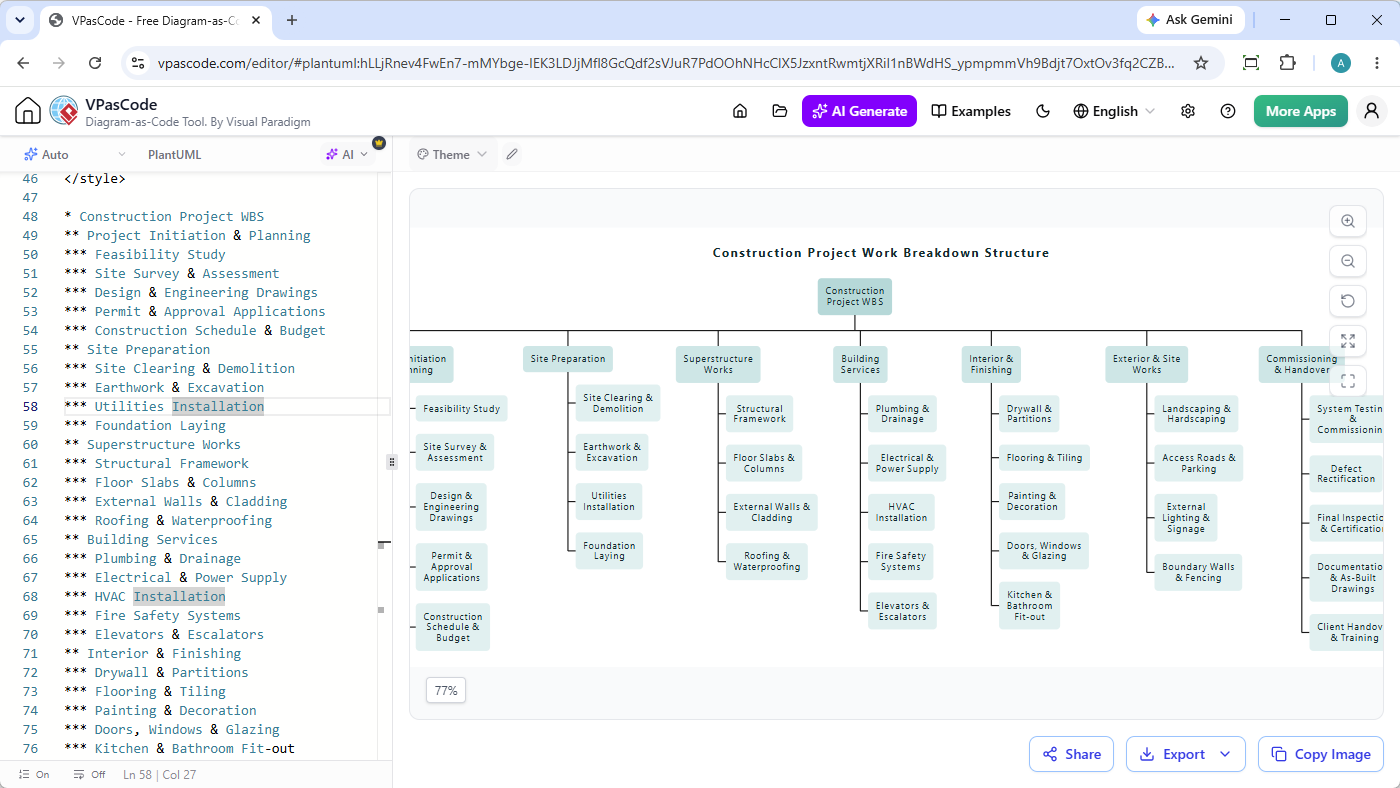
Ready to try it out yourself? Copy the complete code snippet from this tutorial, head over to the
VPasCode Online Editor, paste it in, and watch your professional diagram render instantly!


