


Applying a PlantUML theme is the fastest way to turn plain text code into polished, professional software documentation. By default, standard PlantUML diagrams use basic grey shapes and simple lines. Applying a theme lets you instantly transform the overall visual style of your entire diagram using pre-designed color schemes and layouts—without needing to write custom styling code.
Part 1: How PlantUML Themes Work (General Guide)
Understanding the Standard Syntax
In standard PlantUML, you customize diagram styles using the !theme directive. You place this line near the top of your code snippet, right after @startuml.
Code snippet
@startuml
!theme cerulean

actor User
participant "Web App" as App
User -> App: Log in
@enduml
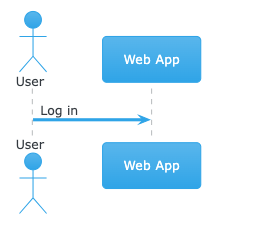
@startuml
!theme hacker

actor User
participant "Web App" as App
User -> App: Log in
@enduml
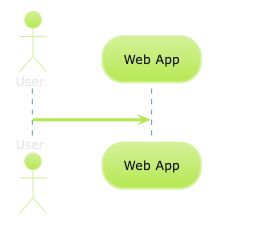
Key Techniques for Using Themes in Any Editor
-
Built-in Themes: PlantUML comes with a library of built-in styles like
materia,cerulean, andcrt-amber. -
External Theme Libraries: You can load custom themes hosted on GitHub or local servers using the
!theme <theme-name> from <url>command.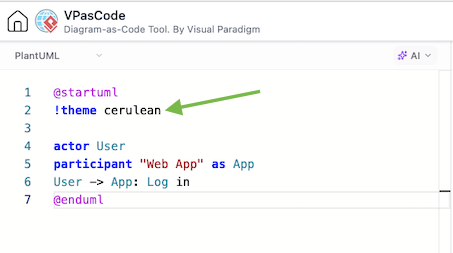
-
Global Consistency: Instead of adding inline CSS styles to every class or component, applying a theme sets a unified visual style across all elements at once.
Part 2: The Easy Way — Applying Themes in VPasCode
While manual syntax works well, remembering exact theme names or dealing with syntax errors can slow down your workflow. Using a modern text-to-diagram editor like VPasCode simplifies this process completely.
1. Visual Theme Selection Menu
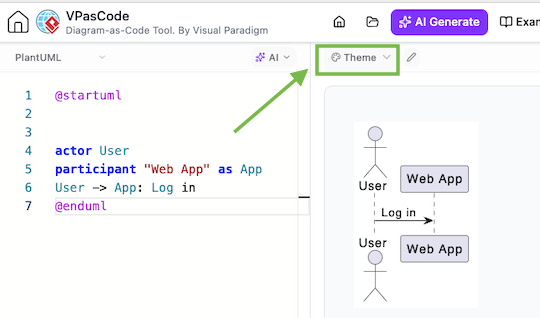
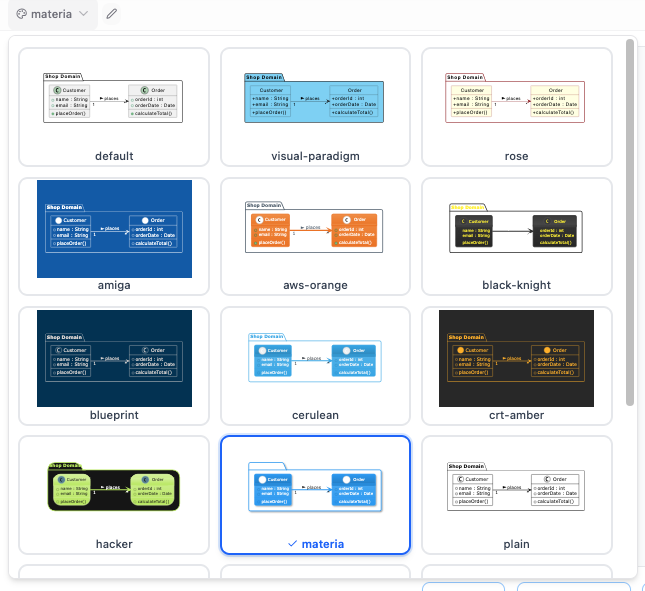
Stop searching through documentation to find theme names. The built-in theme dropdown menu displays a curated list of popular styles directly inside your editor toolbar.
2. Automatic Code Injection
Selecting a style automatically adds the correct !theme line into your PlantUML script. You do not need to memorize exact command formats or manually type code blocks.
3. Instant Live Preview
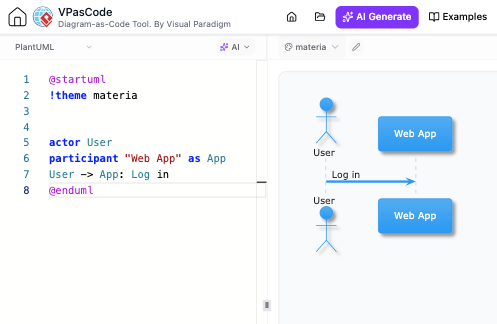
Preview your visual changes in real time. Switch between light, dark, retro, or modern styles to see how your diagram renders instantly before finalizing your documentation.
4. Exclusive Custom Themes
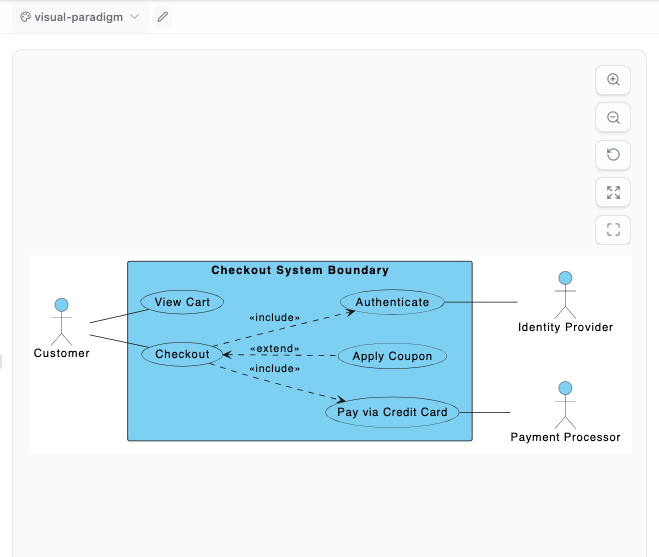
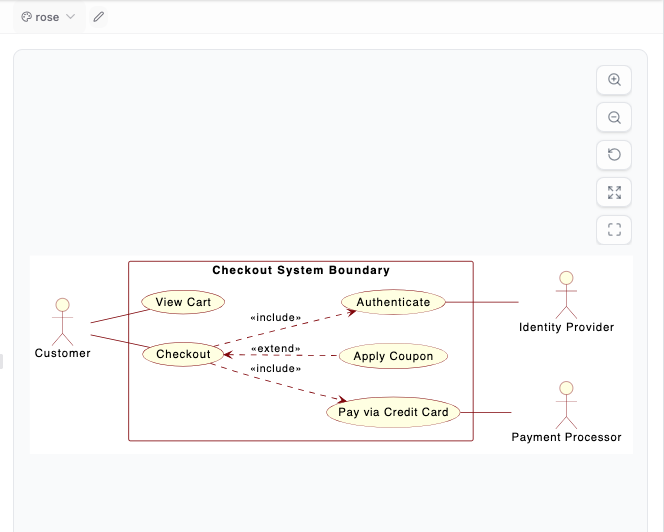
Access unique options like the visual-paradigm theme (featuring clean, modern blue headers) and the rose theme (delivering the classic yellow-and-red look of IBM Rational Rose).
Explore New Theme Features:
• Read about our New PlantUML Theme Selection UI
• Learn more about the Visual Paradigm and Rose Custom Themes
Conclusion
Whether you edit code manually or use an interactive editor, using PlantUML themes creates clear, professional documentation in seconds.
Try testing your code in the VPasCode editor to experience fast, dropdown-based theme styling today.