VPasCode is an intuitive diagram-as-code tool and unified text to diagram platform that lets you create diagrams using popular formats like PlantUML, Mermaid, and Graphviz. With native AI capabilities built right in, you can now generate visuals instantly from natural language.
What is VPasCode?
VPasCode (Visual Paradigm’s diagram-as-code platform) is a unified text-to-diagram platform that lets you create diagrams using popular formats like PlantUML, Mermaid, and Graphviz. Whether you’re documenting software architecture, planning projects, or visualizing data flows, VPasCode provides a free code editor, real-time renderer, and integrated AI to bring your ideas to life. The best part? You can start creating diagrams immediately at www.vpascode.com – no registration required for basic features. For a complete overview of the latest native AI features, check out our Major VPasCode Update Announcement.Step 1: Access VPasCode
Navigate to www.vpascode.com in your web browser. You’ll see a clean interface with a code editor on the left and a live preview panel on the right. The platform loads instantly with a sample diagram to help you understand the syntax.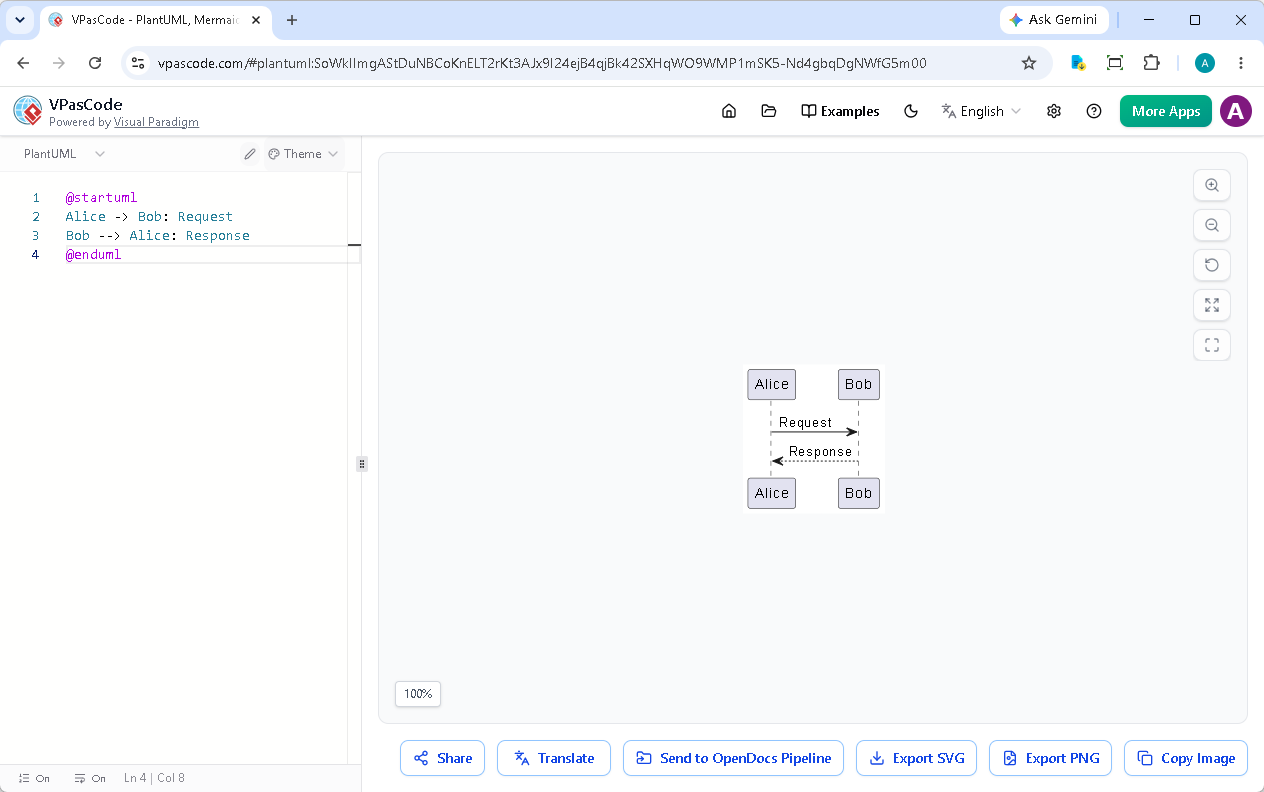
Step 2: Create Your Diagram (Via AI Prompt or Code)
VPasCode serves as a versatile diagram-as-code tool supporting multiple formats. You have two main ways to build your diagrams: writing code manually or generating them instantly using embedded AI.Option A: Generate Instantly with Native AI
Rather than starting from scratch, you can type a natural language prompt directly inside the app interface. For example, try entering:“Generate a use case diagram in PlantUML for an ATM system”VPasCode will instantly create the diagram natively for you in seconds. To see this workflow in action, watch our walkthrough video: Create & Edit Diagrams Fast with AI on YouTube.
Option B: Write Flowchart Code Manually
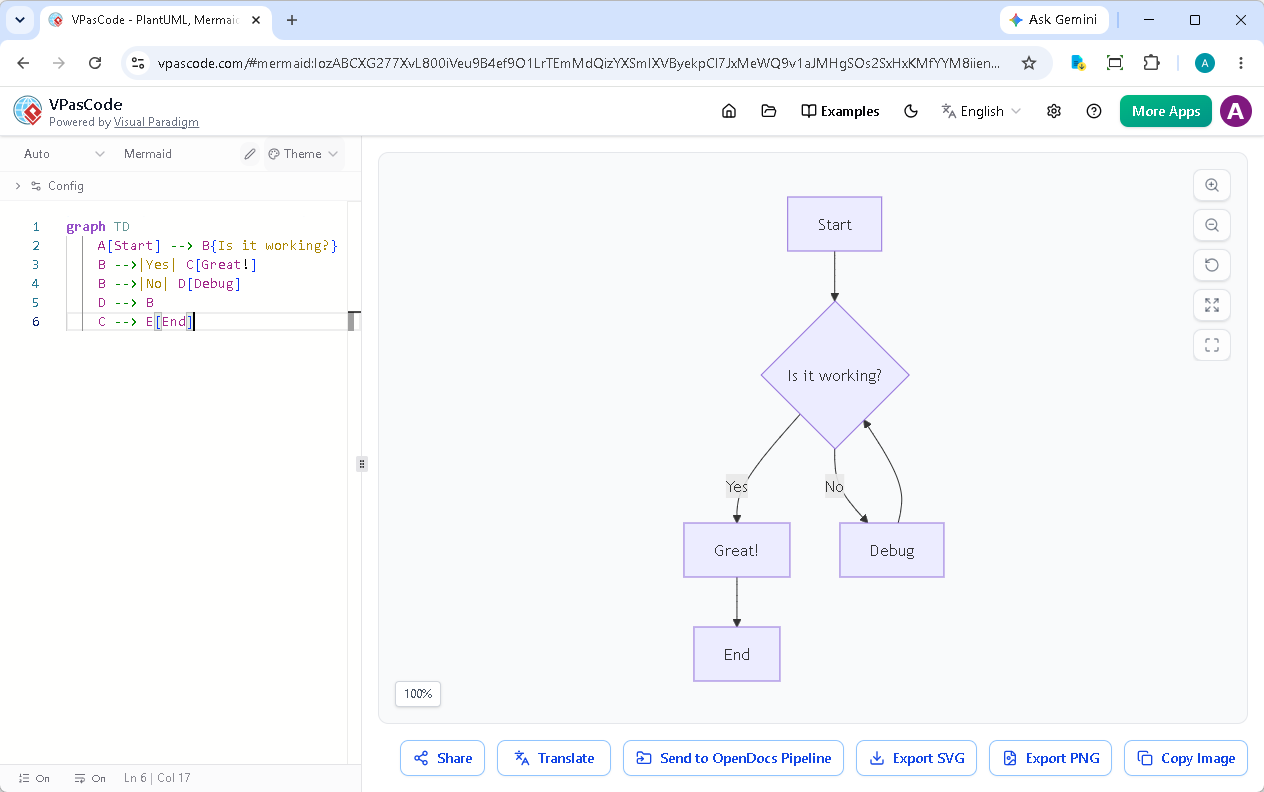
Alternatively, you can write or paste code manually. Clear the editor and use this simple Mermaid flowchart example:
Mermaid
Edit Mermaid in VPasCode
graph TD
    A[Start] --> B{Is it working?}
    B -->|Yes| C[Great!]
    B -->|No| D[Debug]
    D --> B
C --> E[End]graph TD– Creates a top-down graphA[Start]– Defines a node labeled “Start”-->– Creates an arrow connectionB{Is it working?}– Creates a decision diamond|Yes|and|No|– Labels for the decision paths
Step 3: View Real-Time Preview
As you type or prompt, this diagram-as-code tool instantly renders your visual on the right side. No need to click “compile” or “refresh” – the real-time text to diagram engine updates automatically.Step 4: Export and Share Your Diagram
Once you’re satisfied with your diagram, you have several options:Export as Image
Click the “Export” button and choose your preferred format:- SVG – Vector format perfect for presentations and documentation (scalable without quality loss)
- PNG – Raster image format compatible with all applications
Share via URL
VPasCode generates a unique URL for your diagram. Simply copy the link from your browser’s address bar and share it with colleagues. Anyone with the link can view your diagram – no account required.Bonus: Leverage In-App AI Capabilities
VPasCode features deep embedded AI integration. Beyond generating full diagrams from text prompts like “Generate a use case diagram in PlantUML for an ATM system”, it also includes AI-powered error fixing. When the parser detects a syntax mistake, simply click the “Fix by AI” button to correct your code and receive a helpful explanation. The AI understands PlantUML, Mermaid, and Graphviz syntax deeply, providing frictionless support whether you are prompting from scratch or debugging code.What’s Next?
You’ve just explored the fundamentals of VPasCode! Here are some ideas to continue your journey:- Explore different diagram types – Try creating sequence diagrams, class diagrams, or C4 models using natural language prompts
- Experiment with other formats – Switch between Mermaid, PlantUML, and Graphviz seamlessly
- Use AI translation – Translate your diagram labels into different languages with AI assistance
- Integrate with documentation – Send your diagrams to Visual Paradigm OpenDocs for comprehensive documentation