


If you have ever spent hours manually dragging boxes, aligning arrows, or fixing broken connector lines in a visual editor, you know how painful manual documentation can be. The moment your system architecture changes, your visual maps are immediately out of date. Maintaining technical visuals manually quickly turns into a tedious chore that software engineering teams avoid, resulting in stale documentation and communication gaps.
Fortunately, there is a much faster, more reliable way. By using a modern text to diagram tool, you can convert plain text scripts—or even natural language prompts via built-in AI—directly into clean visual models in under five minutes. Instead of fighting with canvas positioning, you simply write code statements or describe what you need, and the engine handles layout and alignment automatically. For full details on the latest native capabilities, check out our Major VPasCode Update Announcement.

Why Use Code Instead of Drag-and-Drop Editors?
Traditional drag-and-drop tools work fine for small drawings, but they break down when projects grow. Updating a complex workflow means re-arranging every shape on the canvas manually, reconnecting broken arrow paths, and tedious re-exporting every time a small requirement changes.
Switching to a dedicated diagram-as-code tool changes the process entirely. Instead of painting shapes, you describe your workflow using simple text statements or natural language. The software handles layout, spacing, and alignment automatically, allowing developers to treat documentation as source code.
Key Benefits of Text-Based Visuals:
- Unmatched Speed: Type your ideas naturally using plain text or generate visuals instantly via integrated AI prompts.
- Automated Layouts: Nodes, arrows, swimlanes, and containers position themselves perfectly without manual tuning.
- Zero Alignment Hassle: Never worry about crooked lines, misaligned margins, or misplaced text boxes again.
- Instant Global Edits: Update a component name across a massive architecture map in seconds using basic text search-and-replace in your diagram-as-code tool.
Step 1: Write Simple Text Statements or Prompt AI
Creating your first visual requires no design background whatsoever. Using a reliable platform like VPasCode, you can either select your preferred domain-specific language—such as PlantUML or Mermaid—or leverage native, in-app AI diagram generation directly within the application interface.
By typing a natural language prompt—such as “Generate a use case diagram in PlantUML for an ATM system”—VPasCode instantly creates the diagram natively for you. (You can also watch our YouTube walkthrough video to see this in action).
Alternatively, if writing manually, here is an example of a simple authentication flow written in standard PlantUML text:
@startuml
User -> WebApp: Enter Credentials
WebApp -> AuthServer: Validate Login
AuthServer --> WebApp: Token Granted
WebApp --> User: Dashboard Access
@uml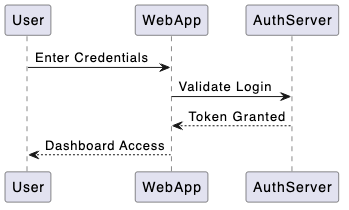
When you paste code or prompt the AI inside the text to diagram tool, the engine parses relationships instantly and draws Sequence Diagrams automatically, rendering clear participant lifelines and message arrows.

Step 2: Instant Rendering & Automatic Code Detection
One common hurdle with multi-engine software is figuring out which script syntax you are viewing or manually switching modes for different data types. VPasCode solves this with automatic code detection. Whether you paste SQL database schemas, JSON payloads, PlantUML, or Graphviz scripts, the renderer recognizes the format without forcing you to toggle complex settings manually.
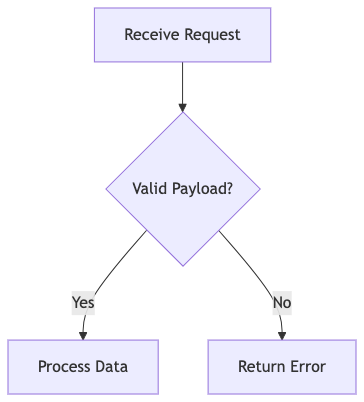
As you edit your text in the diagram-as-code tool, the live preview renders instantly on the screen. If you prefer Mermaid syntax to map out Flowcharts, you can create a process logic decision flow just as quickly:
graph TD;
    A[Receive Request] --> B{Valid Payload?};
    B -- Yes --> C[Process Data];
    B -- No --> D[Return Error];
Step 3: Fix Syntax Mistakes with One-Click AI
Typing code scripts can occasionally lead to syntax errors. A missing bracket, misspelled tag, or misplaced semicolon can stop rendering in its tracks. Instead of searching through lines of code to spot a missing character manually, an advanced diagram-as-code tool offers AI Code Error Fixing.
With a single click on “Fix by AI”, the tool identifies the syntax bug, provides a side-by-side code diff, explains what went wrong in plain language, and applies the correction instantly. Note: Advanced AI diagram generation, modification, and error-fixing features are available in higher tiers such as Visual Paradigm Online Deluxe Edition or Visual Paradigm Desktop Professional Edition+.

Step 4: Export and Share Your Diagrams
Once your visual is generated inside VPasCode, sharing it with team members takes only seconds. You can export high-quality vector SVG files for crisp scaling in technical specifications or standard PNG images for presentation reports.
In addition to direct image downloads, instant web URLs and QR codes allow team members to view and collaborate on your models directly without installing additional desktop applications. You can also connect your visuals to live documentation ecosystems like Visual Paradigm OpenDocs to keep team docs synced with code changes.
Comparing Popular Diagram-as-Code Engines
When selecting a text to diagram tool, having access to multiple rendering engines ensures you always have the right format for the job:
| Engine | Best Use Case | Key Features |
|---|---|---|
| PlantUML | UML models, sequence flows, software architecture | Rich UML support, detailed component mapping |
| Mermaid | Flowcharts, Gantt charts, lightweight documentation | Clean modern look, simple syntax |
| Graphviz | Network graphs, complex structural maps | Advanced layout control, node graph trees |
| Markmap | Mind Maps, visual brainstorming | Markdown-based tree generation |
Start Building Diagrams Faster Today
You don’t need expensive graphics software or hours of free time to create clear, professional software documentation. By leveraging a unified diagram-as-code platform like VPasCode, you can write plain text or use native AI prompts in a flexible text-to-diagram tool, render visuals in real-time, and share clean models with your team in under five minutes.
Ready to Transform Your Text into Clean Diagrams?
Experience instant rendering, multi-engine support, and AI-powered diagram generation with VPasCode today.