


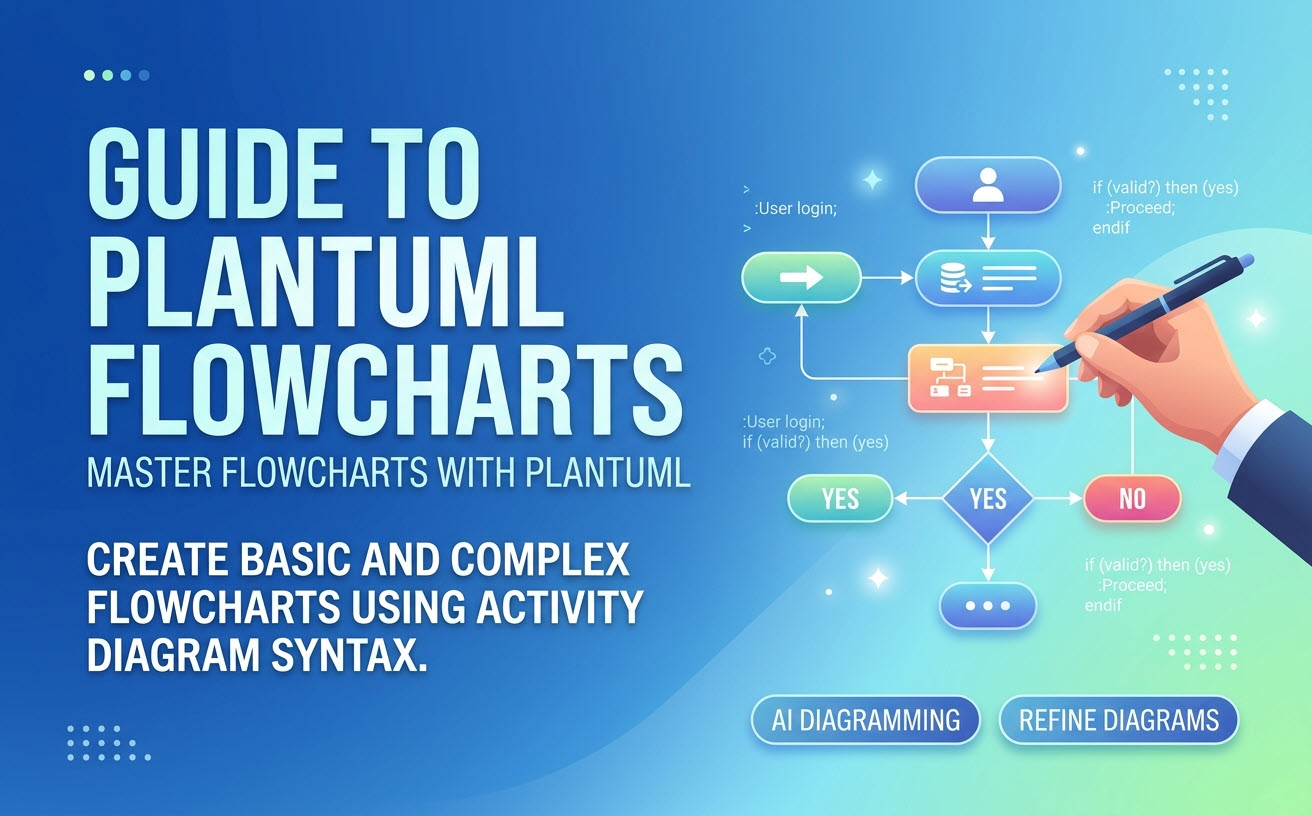
 When software engineers, system architects, and technical writers need to map out processes, text-based diagramming is often the fastest, most maintainable solution. Among these tools, PlantUML stands out as an industry favorite.
However, beginners frequently run into an immediate roadblock: PlantUML does not natively support a dedicated “flowchart” diagram type.
The good news? You can easily create a clean, functional PlantUML flowchart by using PlantUML’s Activity Diagram syntax.
In this guide, you will learn how PlantUML handles flowcharts, how to write the core syntax step by step, and how to speed up your workflow using modern tools like VPasCode (which now features native, in-app AI generation) and the Visual Paradigm AI Diagramming Chatbot. For full details on these new capabilities, check out our Major VPasCode Update: Generate and Modify Diagrams Instantly with AI.
When software engineers, system architects, and technical writers need to map out processes, text-based diagramming is often the fastest, most maintainable solution. Among these tools, PlantUML stands out as an industry favorite.
However, beginners frequently run into an immediate roadblock: PlantUML does not natively support a dedicated “flowchart” diagram type.
The good news? You can easily create a clean, functional PlantUML flowchart by using PlantUML’s Activity Diagram syntax.
In this guide, you will learn how PlantUML handles flowcharts, how to write the core syntax step by step, and how to speed up your workflow using modern tools like VPasCode (which now features native, in-app AI generation) and the Visual Paradigm AI Diagramming Chatbot. For full details on these new capabilities, check out our Major VPasCode Update: Generate and Modify Diagrams Instantly with AI.
Understanding Flowcharts in PlantUML
Why PlantUML Uses Activity Diagrams for Flowcharts
In UML (Unified Modeling Language) standards, flowcharts and activity diagrams share the same fundamental purpose: visualizing sequential logic, decision points, and conditional execution paths. Rather than maintaining two redundant syntax formats, PlantUML utilizes its modern Activity Diagram (New Syntax) engine to serve as a full-featured PlantUML flowchart builder. It offers clean, readable code that renders directly into structured visual flows.Creating Your First PlantUML Flowchart Script
Writing a PlantUML flowchart requires only a few core markup elements. Every diagram begins with@startuml and concludes with @enduml.
Basic Syntax Overview
- Start and Stop:
startandstopmark the execution boundaries. - Process Steps: Enclosed in colons and terminated with a semicolon, like
:Perform Action;. - Decision Nodes: Written using
if (...) then (...) else (...) endifstructures.
Step-by-Step Code Example: User Login Logic
Here is how you can write a standard decision-based PlantUML flowchart:
PlantUML
Edit PlantUML in VPasCode
@startuml
start
:User enters login credentials;

if (Are credentials valid?) then (yes)
    :Authenticate user session;
    :Redirect to user dashboard;
    :Display welcome notification;
else (no)
    :Display error message;
    :Increment failed login counter;
    if (Failed attempts > 3?) then (yes)
        :Lock account temporarily;
    else (no)
        :Prompt user to retry;
    endif
endif

stop
@enduml
Visualizing Decision Branches and Loops
Because the syntax reads like standard pseudocode, nesting decisions or building repeat loops remains clean and readable. You can add explicit labels to directional arrows simply by passing parameter text inside parentheses afterthen or else.
Accelerating Diagram Creation with AI
While writing DSL code manually is simple for small processes, complex system architectures can require dozens of decision paths. You can significantly reduce setup time by using AI to convert natural language descriptions directly into standard PlantUML code. You can achieve this using two flexible paths:Path 1: Native In-App AI Generation in VPasCode
With recent enhancements, VPasCode features embedded AI capabilities directly within the application interface.- Open the VPasCode editor.
- Click the AI Generate button on the top toolbar.
- Type a natural language prompt—such as “Generate a flowchart in PlantUML for an e-commerce order cancellation flow”.
- VPasCode will natively generate the code and render the diagram instantly on your screen.
Path 2: Using the Visual Paradigm AI Diagramming Chatbot
Alternatively, you can generate your models through our specialized chatbot integration:- Define Your Goal: Describe your process in plain English inside the Visual Paradigm AI Diagramming Chatbot.
- Generate the Script: The AI chatbot analyzes the logic and generates the valid PlantUML diagram code instantly.
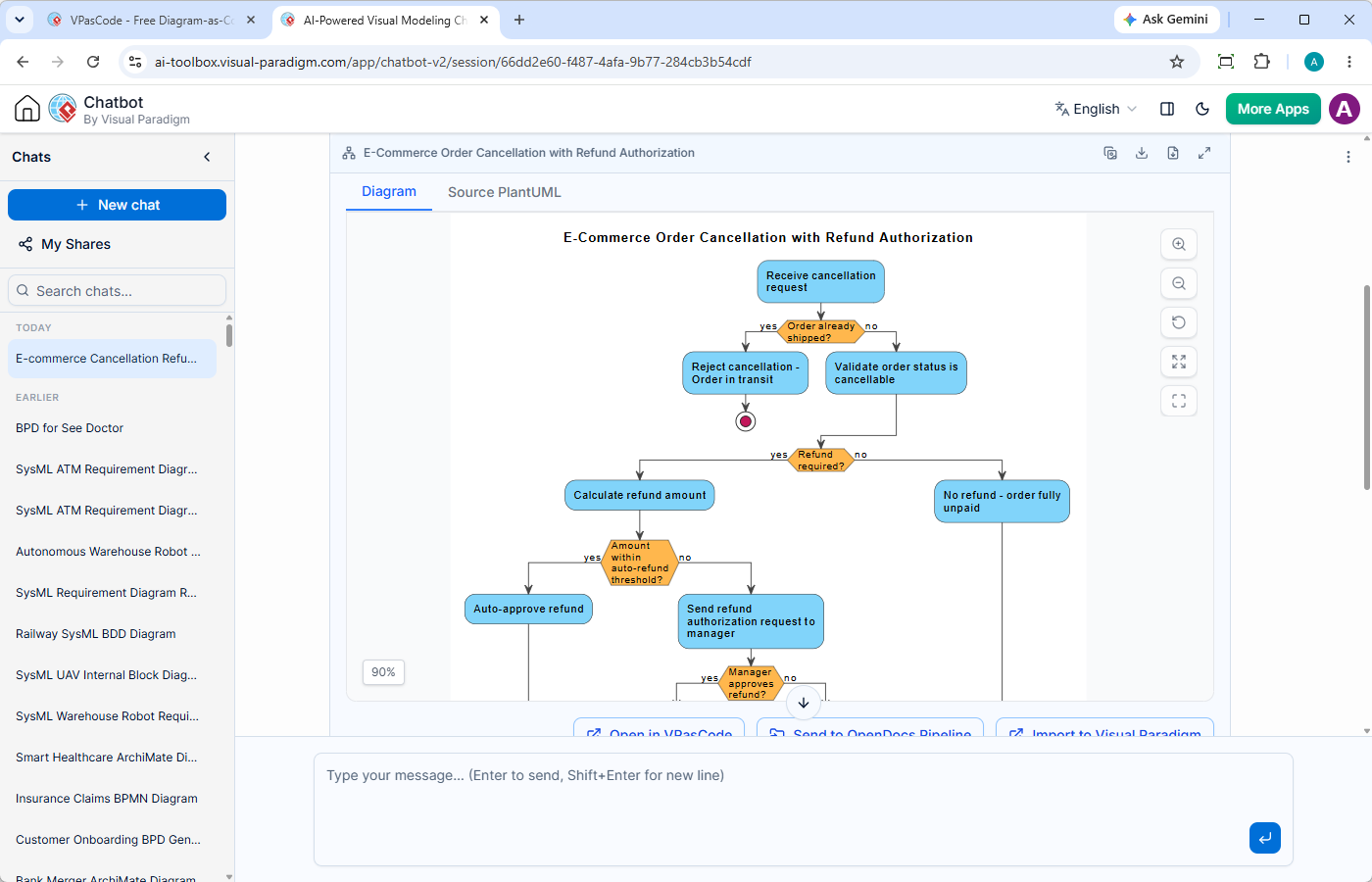
- Open in VPasCode: Transfer the generated diagram into the VPasCode PlantUML Tool for instant visualization and touchups.
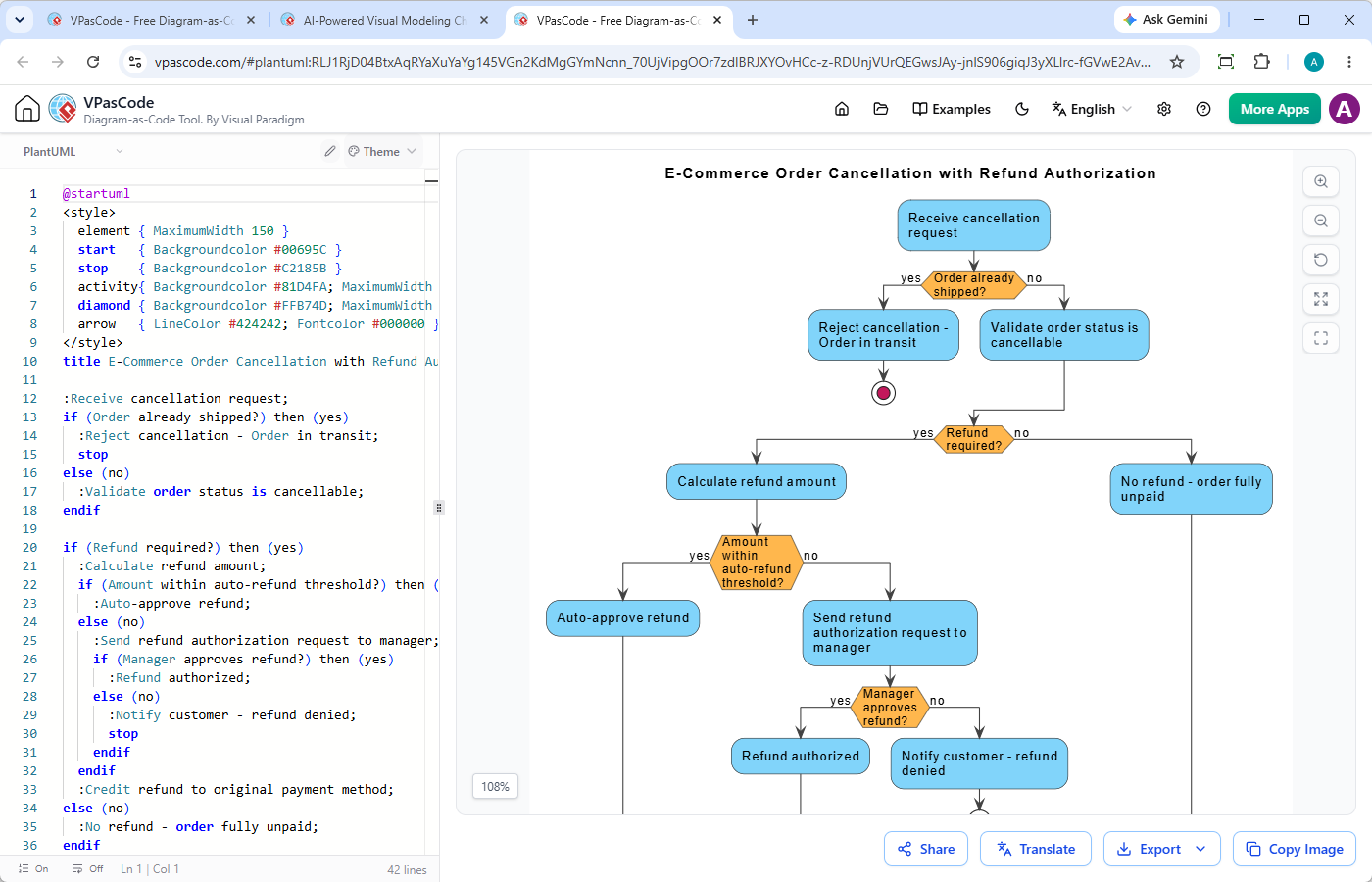
Refining and Editing Diagrams with Visual Paradigm VPasCode
Once you have generated or hand-coded your PlantUML script, you need a high-performance workspace to test, preview, and customize your visuals. This is where Visual Paradigm VPasCode (vpascode.com) provides a seamless editor environment.
- Generate your diagram using native in-app AI or the AI Chatbot.
- Review and refine the model in the VPasCode diagram-as-code tool.
- Fine-tune and export as an image or share it with others.
Key VPasCode Features for Diagram-as-Code Workflows
- Automatic Format Detection: Paste raw script into the editor, and VPasCode automatically identifies PlantUML, Mermaid, or Graphviz without forcing you to pick from a dropdown menu.
- Real-Time Live Preview: Changes made in the code pane reflect immediately in the render window, making layout tweaks fast and interactive.
- AI Code Error Fixing & Modification: If you introduce a syntax error or want to adjust your flowchart, utilize VPasCode’s intelligent AI diagnostic and modification tools. (Note: Advanced AI diagram generation, modification, and error-fixing features are available in Visual Paradigm Online Deluxe Edition / Visual Paradigm Desktop Professional Edition+).
- Native Translation: Need to present your architecture to an international team? Translate text and labels across multiple languages directly inside the platform.
- High-Resolution Vector Export: Download your completed diagrams as scalable SVG files for documentation platforms like OpenDocs, or as high-resolution PNG images for presentations.
Frequently Asked Questions (FAQ)
Can I create standard flowcharts directly in PlantUML?
While PlantUML does not have a dedicated “flowchart” keyword, its Activity Diagram syntax fulfills all flowchart requirements, making it the standard method for rendering a PlantUML flowchart.What is the best online PlantUML Editor?
Visual Paradigm VPasCode (vpascode.com) offers a powerful, browser-based editor featuring automatic language detection, real-time preview, AI-assisted tools, and vector SVG exports.