


What is a Sequence Diagram?
A Sequence Diagram is an essential behavioral UML diagram designed to visualize the chronological flow of messages, function calls, and data payloads between different system entities over a linear timeline. Recognized as a core UML diagram type, it maps out runtime interactions by stacking system components along the X-axis as vertical lifelines and tracking message exchanges down the Y-axis. This blueprint is invaluable for developers debugging distributed API handshakes, microservice orchestration paths, or real-time user authentication flows. With Mermaid.js, you can script complex temporal processes using an intuitive text structure. The engine automatically handles vertical spacing, manages message arrow alignments, and draws runtime activation blocks cleanly across your canvas.Core Syntax Guide: Elements and Constructs
To design an accurate, highly scannable UML sequence diagram in Mermaid, you must master participant declarations, message arrow variants, explicit lifelines, and conditional block structures.1. Declaring Participants and Actors
You declare a standard system entity using theparticipant keyword. If the entity represents a human end-user or an external operator, use the actor keyword to render a standard stick-figure icon on the canvas canvas:
Mermaid
Edit Mermaid in VPasCode
sequenceDiagram
    actor Client
    participant API as Gateway Router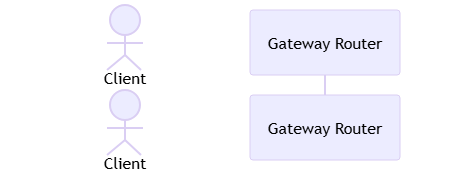
as keyword to map long component names to compact internal aliases, keeping your message scripts concise and readable.
2. Formatting Message Arrows
The type of line and arrowhead you use dictates the communication style between your system participants:->>**Synchronous Call:** A solid line with a filled arrowhead. Represents a blocking request that waits for an execution completion.-->**Response Line:** A dashed line with an open arrowhead. Used to return data payloads or acknowledgment tokens.->**Asynchronous Call:** A solid line with an open arrowhead. Indicates a non-blocking message or event broadcast.
Mermaid
Edit Mermaid in VPasCode
sequenceDiagram
    App->>Server: Request Payload
    Server-->App: 200 OK Response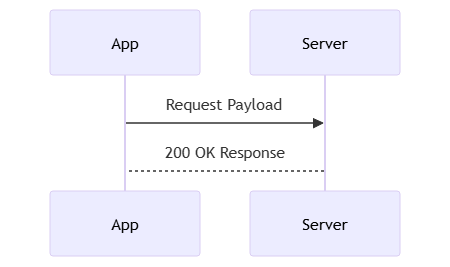
3. Managing Lifeline Activation Bars
To show exactly when a system component is actively executing a task or taking up thread memory, use theactivate and deactivate commands. Alternatively, you can append a plus (+) or minus (-) sign directly onto your message targets as a fast visual shortcut:
Mermaid
Edit Mermaid in VPasCode
sequenceDiagram
    Client->>+Server: Process Data
    %% Server is now visually active
    Server-->-Client: Return Results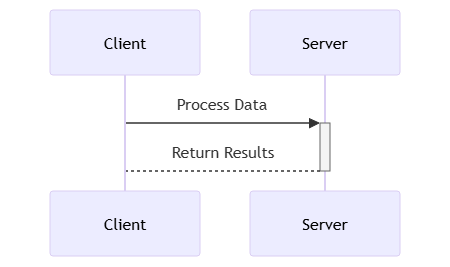
4. Structuring Conditionals and Alternatives (Alt, Opt, Loop)
To handle branching runtime logic, token evaluations, or repetitive request retries, wrap your message scripts inside standard block fragments:alt / else— Evaluates conditional paths (similar to if/else code blocks).opt— Defines an optional step that only executes under specific criteria.loop— Repeats an execution sequence until a condition is satisfied.
Mermaid
Edit Mermaid in VPasCode
sequenceDiagram
    loop Every 30 seconds
        Client->>Server: Heartbeat Ping
    end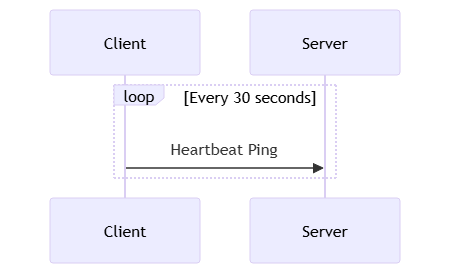
Best Practices for Clean Sequence Timelines
- Keep Lifelines Uncluttered: Avoid listing dozens of micro-entities along the X-axis. If a process interacts with minor helper classes, abstract them behind a high-level system boundary like
[Auth Worker]or[Cache Pool]. - Label Status Codes Explicitly: When writing response returns (
-->), don’t just write “Return Data”. Label the path with explicit HTTP statuses or event types (e.g.,"201 Created (JWT Token)") to give engineers precise context. - Implement Notes for Complex Calculations: Use the
Note over,Note left of, orNote right ofdirectives to document non-visual operations, like internal encryption steps or database data hashing.
Real-World Mermaid.js Sequence Diagram Examples
Example 1: Secured OAuth2 Token Exchange Flow (Activation & Alternative Blocks)
This functional blueprint models a secure user login sequence. It demonstrates how to combine human actors, explicit system lifelines, and complex validation paths using an alt/else block.
Mermaid
Edit Mermaid in VPasCode
sequenceDiagram
    actor User as End User
    participant App as Mobile App Client
    participant Auth as Auth0 Identity Provider

    User->>+App: Click "Login with OAuth"
    App->>+Auth: Redirect with client_id & scope
    Auth-->>User: Render Login Interface
    User->>Auth: Submit Credentials

    Auth->>Auth: Validate Password Hash

    alt Credentials Are Valid
        Auth-->>App: 302 Redirect with Auth Code
        App->>Auth: Exchange Code for Access Token
        Auth-->>-App: Return JWT Token (IdToken)
        App-->>User: Render User Account Home
    else Invalid Credentials
        Auth-->>App: Return 401 Unauthorized Error
        App-->>-User: Show "Invalid Username/Password" Alert
    end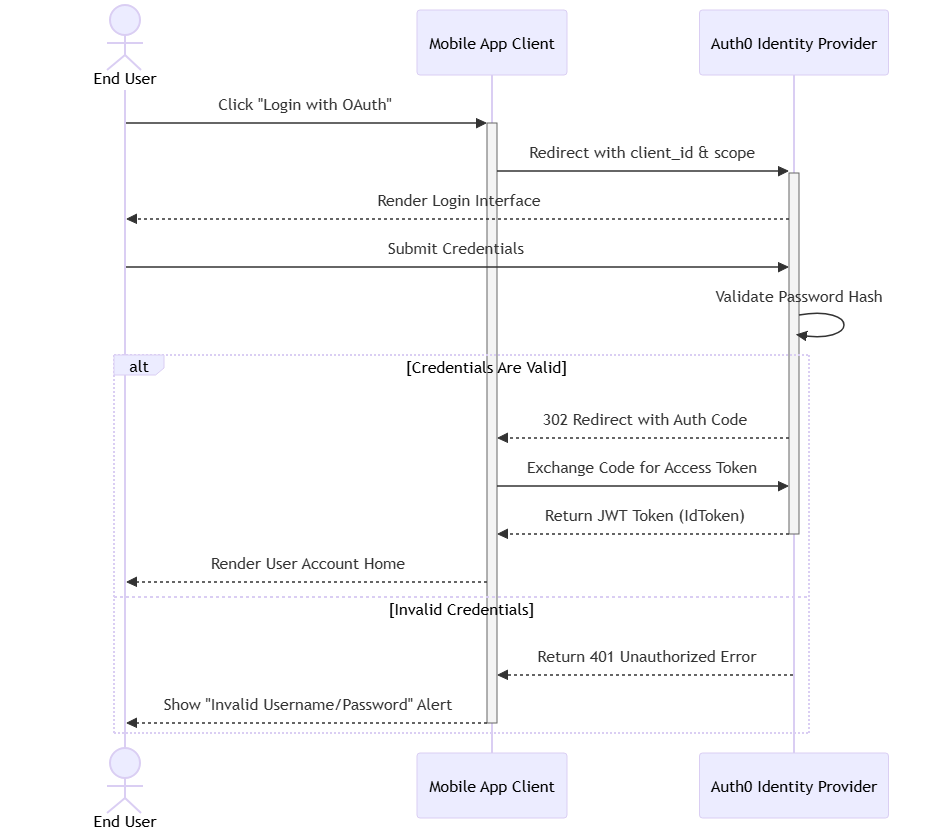
alt / else container maps out the binary validation paths clearly, ensuring error states are fully documented alongside the happy path.
Example 2: Distributed Order Inventory Checkout (Parallel Processes & Notes)
This advanced system blueprint maps out an enterprise e-commerce checkout pipeline. It utilizes parallel blocks (par) to show concurrent API dispatch routines and handles database locking notes across the topology.
Mermaid
Edit Mermaid in VPasCode
sequenceDiagram
    participant Web as Web Frontend
    participant Ord as Order Orchestrator
    participant Inv as Inventory Service
    participant Pay as Payment Gateway

    Web->>+Ord: Submit Checkout Request
    Note over Ord: Verify Item Stock Availability

    par Dispatch Concurrent API Calls
        Ord->>+Inv: Lock Inventory Items
        Inv-->-Ord: Inventory Reserved (Stock Locked)
    and
        Ord->>+Pay: Authorize Credit Card Charge
        Pay-->-Ord: Capture Successful (Charge Settled)
    end

    opt Process Allocation Fails
        Note right of Ord: Execute rollback saga if any call fails
    end

    Ord-->-Web: 200 Success Checkout Confirmed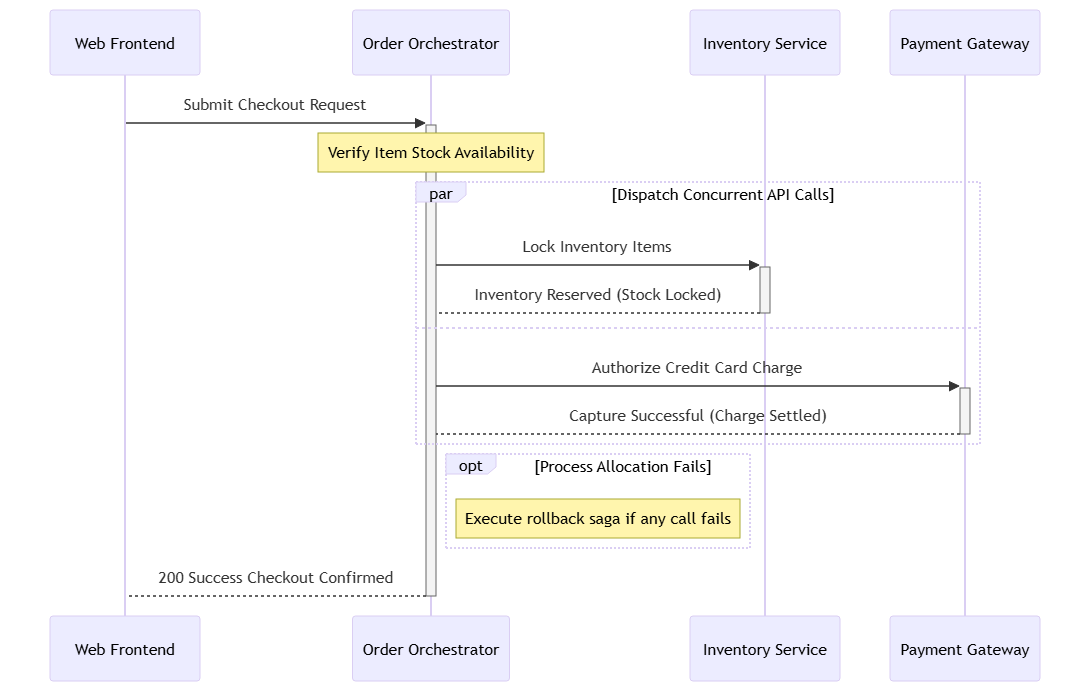
par / and container instructs the engine to group parallel executions together, documenting concurrent backend operations. The Note over and Note right of tags inject technical runtime explanations directly into the canvas grid, helping teams understand background transactions like data locking and rollback sagas without cluttering the main message arrows.