


Step 1: Open the Live Editor
Navigate your browser to the free VPasCode Playground. By default, you will be greeted by a modern, dual-panel interface:- The Left Panel (Code Editor): A lightweight, high-performance text editor equipped with automatic syntax highlighting, line numbers, and active error detection.
- The Right Panel (Live Preview Window): A real-time diagram renderer that updates your visual layout automatically as you type or modify your text representation.
Step 2: Choose Your Engine and Paste a Blueprint
VPasCode automatically recognizes your syntax. To see it in action, clear any placeholder text in the left panel and copy-paste one of the following baseline examples into the editor:Option A: Markdown Flowchart (Mermaid Syntax)
If you prefer an agile, top-down flowchart layout, use this simple block:
Mermaid
Edit Mermaid in VPasCode
graph TD
    A[Client Request] --> B{API Gateway}
    B --> |Valid Token| C[Auth Service]
    B --> |Invalid Token| D[Access Denied]
    C --> E[(User Database)]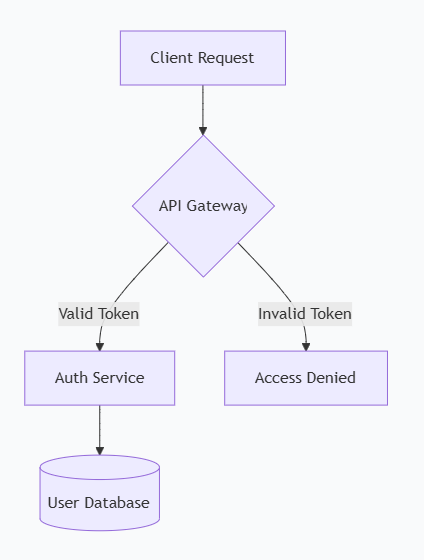
Option B: Software Architecture Component (PlantUML Syntax)
If you want to map structured system components with formal boundary framing, use this block:
PlantUML
Edit PlantUML in VPasCode
@startuml
package "Application Tier" {
    [Web App] -right-> [API Gateway]
}
database "Data Storage" {
    [API Gateway] --> [SQL Main]
    [API Gateway] ..> [Redis Cache] : "Read optimization"
}
@enduml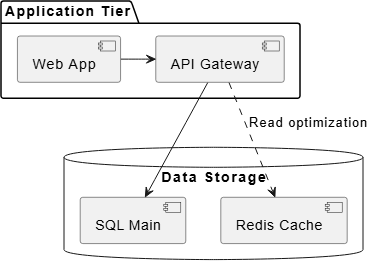
Step 3: Export and Share Your Work
Once you are satisfied with your layout, you can instantly export or share your document using the workspace control bar located at the top of the interface:- Copy Shareable URL: Click the Share button to generate an instant link. VPasCode uses zero-database state serialization, meaning your entire diagram text is securely compressed straight into the URL hash. Anyone who clicks your link can view and edit the exact code model instantly.
- Download High-Res Vector (SVG): Click the Export SVG button to download a scalable vector asset. This is perfect for clean embeds inside Git repositories, team wikis, or internal engineering markdown documentation files.
- Download Static Image (PNG): Click Export PNG to get a high-resolution snapshot ready to be dropped straight into Slack, Microsoft Teams, or design presentations.