


Basic Syntax Structure
Every treemap starts with thetreemap-beta declaration. You then declare structural parent nodes using quoted names, and map individual child leaf nodes by grouping them underneath with standard indentation spaces and adding a colon followed by their numerical weight.
Mermaid
Edit Mermaid in VPasCode
treemap-beta
"Main Category Name"
  "Sub-Category A": 45
  "Sub-Category B": 30
  "Sub-Category C": 25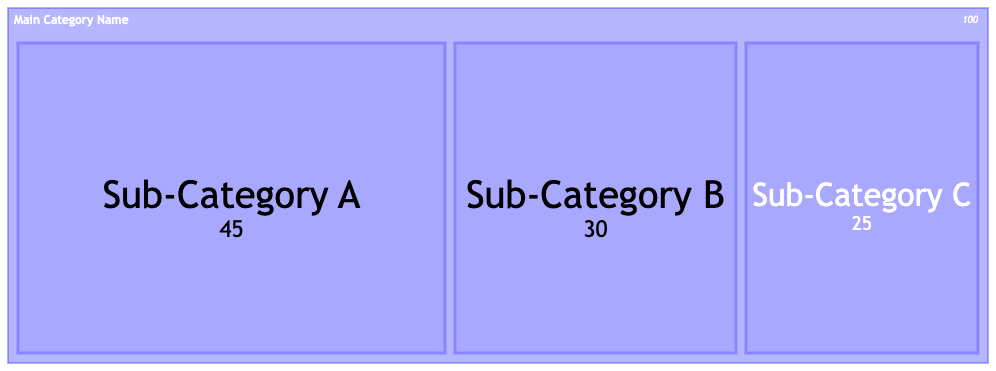
Syntax Reference
The table below breaks down the primary formatting requirements used to build a Treemap layout in Mermaid.js.| Component | Description | Syntax Rule |
|---|---|---|
| Declaration | Initializes the layout structure engine for nested rectangular datasets. | treemap-beta |
| Parent Node | Defines a grouping boundary or parent category. Text must always be enclosed in double quotes. | "Cloud Infrastructure" |
| Leaf Node | A nested data element that carries a specific value weight. | Indented beneath a parent using a trailing colon and a positive number. |
| Hierarchy Data | Determines which elements belong inside specific groups using text depth. | Controlled entirely via standard indentation levels (spaces or tabs). |
Advanced Data Formatting (Directives)
By default, Mermaid shows raw numeric counts. However, you can pass a frontmatter configuration block using thevalueFormat property to format numbers as currency, decimals, or percentages.
Common Format Patterns
| Format String | Result Type | Example Output |
|---|---|---|
'$0,0' |
Dollar sign with standard thousands separator. | $400,000 |
'.1f' |
Displays number with exactly one decimal place. | 45.2 |
'.1%' |
Converts raw weight value into a percentage display. | 35.4% |
Financial Data Blueprint
This blueprint demonstrates how to format an operational corporate budget utilizing custom financial string parameters:
Mermaid
Edit Mermaid in VPasCode
---
config:
  treemap:
    valueFormat: '$0,0'
---
treemap-beta
"Corporate Budget"
  "Engineering Operations"
    "Core Infrastructure": 500000
    "Developer Tools": 150000
  "Growth Marketing"
    "Paid Ad Campaigns": 350000
    "Event Sponsorships": 80000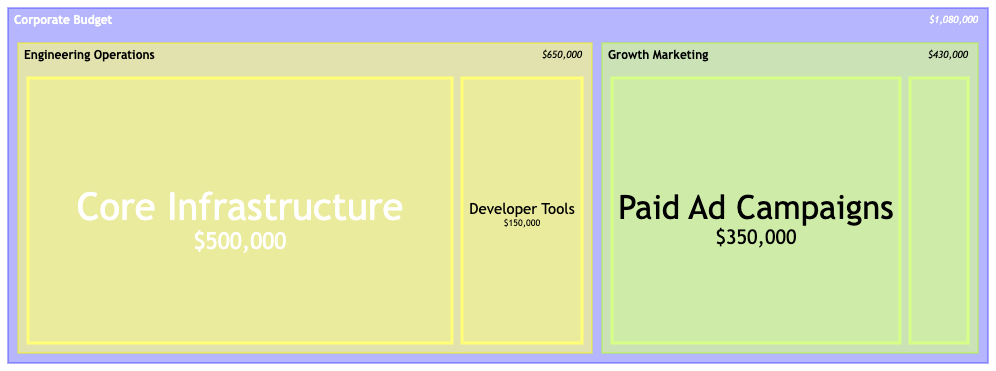
Custom Node Styling (Classes)
To emphasize critical nodes, outliers, or high-risk areas in your documentation, you can define and apply CSS custom styles natively within the code block usingclassDef rules.
Mermaid
Edit Mermaid in VPasCode
treemap-beta
"System Resource Usage"
  "Web Services"
    "API Gateway": 45
    "Auth Service": 95:::critical
  "Database Storage"
    "Primary DB Cache": 60
    "Replica Sync Nodes": 25

classDef critical fill:#ffcccc,stroke:#ff0000,stroke-width:2px;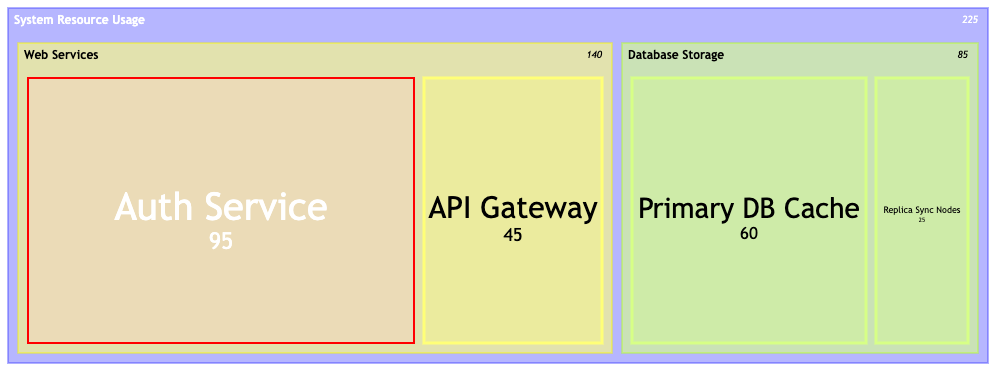
:::className) immediately after the label name but *before* the colon value separator.
Common Syntax Pitfalls & Limitations
Because the treemap schema utilizes structural text indentation, minor formatting slips can cause layout rendering issues. Keep these parameters in mind:- Negative Values Prohibited: Treemaps rely on proportional space filling and are mathematically incapable of rendering negative numbers or zero weights. Ensure all data values are positive integers or decimals.
- Quote Enclosures: Every node description—regardless of whether it is a parent branch or a tiny leaf element—must be wrapped cleanly in double quotes. Omitting quotation brackets causes immediate syntax errors.
- Whitespace Uniformity: The nested parent-child relationship is determined purely by how many spaces sit in front of the line. Stick to a consistent tab or space length rule (like two spaces per level) to prevent nodes from ending up in the wrong group.
- Label Visibility: Very small values within deep hierarchical structures may result in tiny rectangular tiles where text overflows or becomes completely unreadable. Consider grouping small items together under an “Others” category.