


Basic Syntax Structure
Every Venn diagram starts with thevenn-beta declaration, followed by defining individual groups using the set keyword. You then define how those groups overlap using the union keyword.
Mermaid
Edit Mermaid in VPasCode
venn-beta
set GroupA ["Label A"]
set GroupB ["Label B"]
union GroupA, GroupB ["Intersection Label"]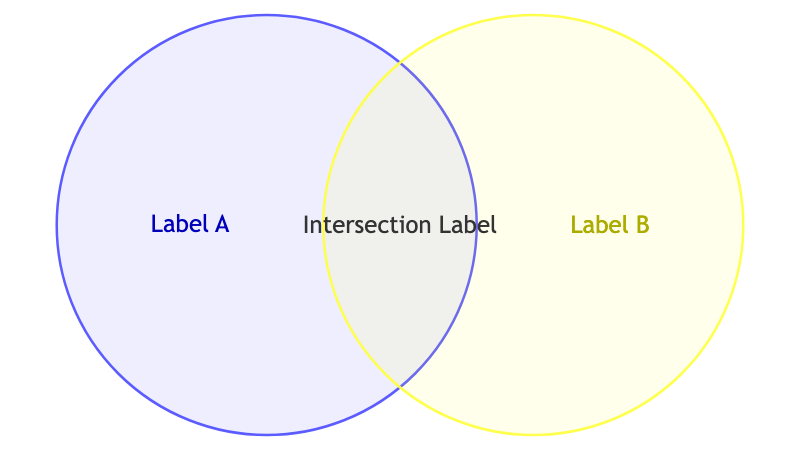
Syntax Reference
The table below breaks down the primary elements used to construct a Venn diagram in Mermaid.js.| Component | Description | Syntax Example |
|---|---|---|
| Declaration | Initializes the Venn diagram renderer (currently in beta). | venn-beta |
| Set | Defines a standalone data category or circle. Always supply an identifier and a display label. | set A ["Marketing Team"] |
| Union | Defines an overlapping area between two or more sets. Separate identifiers with a comma. | union A,B ["Shared Goals"] |
| Size Modifier | An optional :N suffix that scales the circle or intersection size relatively. |
set A ["Large Group"]:15 |
| Text Node | An indented block used to list specific points directly inside a set or an intersection area. | text ItemId ["Specific Bullet"] |
Real-World Blueprint: Product Opportunity Analysis
This blueprint showcases a classic product development strategy framework mapping out user pain points, business goals, and technical feasibility to pinpoint the ideal feature release.
Mermaid
Edit Mermaid in VPasCode
venn-beta
set UserNeed ["User Pain Points"]
set BusinessGoal ["Business Values"]
set TechFeasible ["Technical Capability"]

union UserNeed, BusinessGoal ["Strategic Wins"]
union UserNeed, TechFeasible ["Unmonetized Features"]
union BusinessGoal, TechFeasible ["Internal Automation"]

union UserNeed, BusinessGoal, TechFeasible ["The Product Sweet Spot"]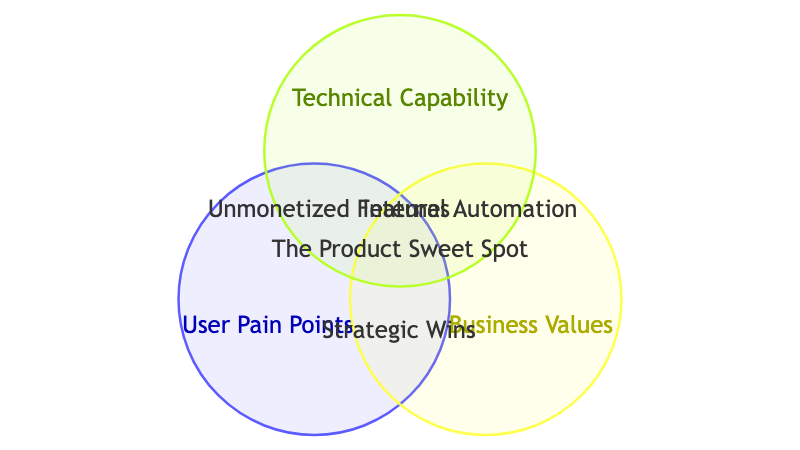
Syntax Tip: When using three or more categories, Mermaid automatically maps the nested intersections for you. Simply declare the final 3-way
union with all three identifiers separated by commas, and the engine will place the label perfectly in the center overlap.
Advanced Concept: Bullet Points & Sizing
For more technical documentation, you can insert specific text bullets directly into your circles and adjust circle scaling to represent real proportions (like database sizes or team headcounts).
Mermaid
Edit Mermaid in VPasCode
venn-beta
set Front ["Frontend"]:10
  text F1 ["React"]
  text F2 ["CSS"]
set Back ["Backend"]:15
  text B1 ["Node.js"]
  text B2 ["PostgreSQL"]

union Front, Back ["Full-Stack"]:3
  text FB1 ["OpenAPI Specs"]
  text FB2 ["Next.js SSR"]

style Front fill:#E8F4FD, stroke:#0072B1
style Back fill:#FDF0E8, stroke:#E06000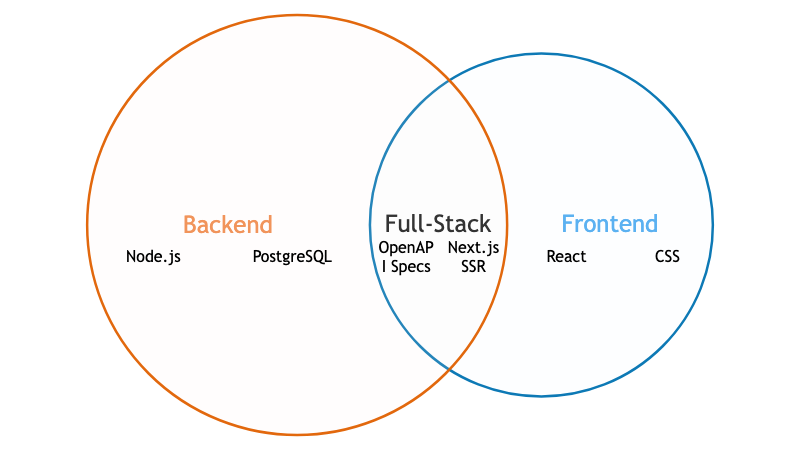
Common Syntax Pitfalls
Venn diagrams are brand new to the Mermaid syntax core. Keep these three structural design rules in mind to make sure your graphics display smoothly:- Prioritize Order: You must completely declare your individual
setlines before referencing them in anyunionblock. Referencing an identifier that hasn’t been explicitly created will break the build. - Watch Union Commas: When building a
unionof multiple sets, make sure there are commas separating your identifiers, but no comma trailing right before the bracket label.union A, B, C ["Label"]is correct. - Beta Version Stability: Because this layout style uses the
venn-betaflag, advanced element custom styling rules may adjust across versions. Stick to basic hex color codes forfillandstrokevariables for maximum cross-compatibility.